The next step in developing a course in KreaTech is creating Lessons. A Lesson is the smallest teaching unit on the platform. Unlike Modules, which group several Lessons by theme, or Courses, which outline an entire program, each Lesson is self-contained, atomic. Lessons support a rich text editor that allows editors to combine structured text with headings, images, embedded video, bullet points, quotations, and attached resources.
The purpose of this Lesson is to guide you through the conceptual and practical process of creating your first Lesson in the KreaTech CMS.
The Role of Lessons in KreaTech
Lessons exist to bridge content and comprehension. They are deliberately atomic: small enough to be manageable for students, yet substantial enough to communicate a defined learning objective. This structure addresses two problems common in traditional teaching platforms.
- It avoids the risk of overwhelming learners. When content is delivered in large, undifferentiated chunks, students often struggle to maintain focus or to identify what knowledge they are meant to retain.
- Encourages educators to clarify the scope of each segment, which in turn helps students pace their study and measure their own progress.
Creating Your First Lesson in the CMS
To create a Lesson, log in to the KreaTech CMS with your User account. In the left-hand sidebar of the admin panel, navigate to the Lessons collection. Here you will see a list of all existing Lessons. By clicking Create New, you open the creation form, which defines the structure of the Lesson.
The Lesson creation panel is divided into two tabs: the details tab and the content tab.
Details Tab
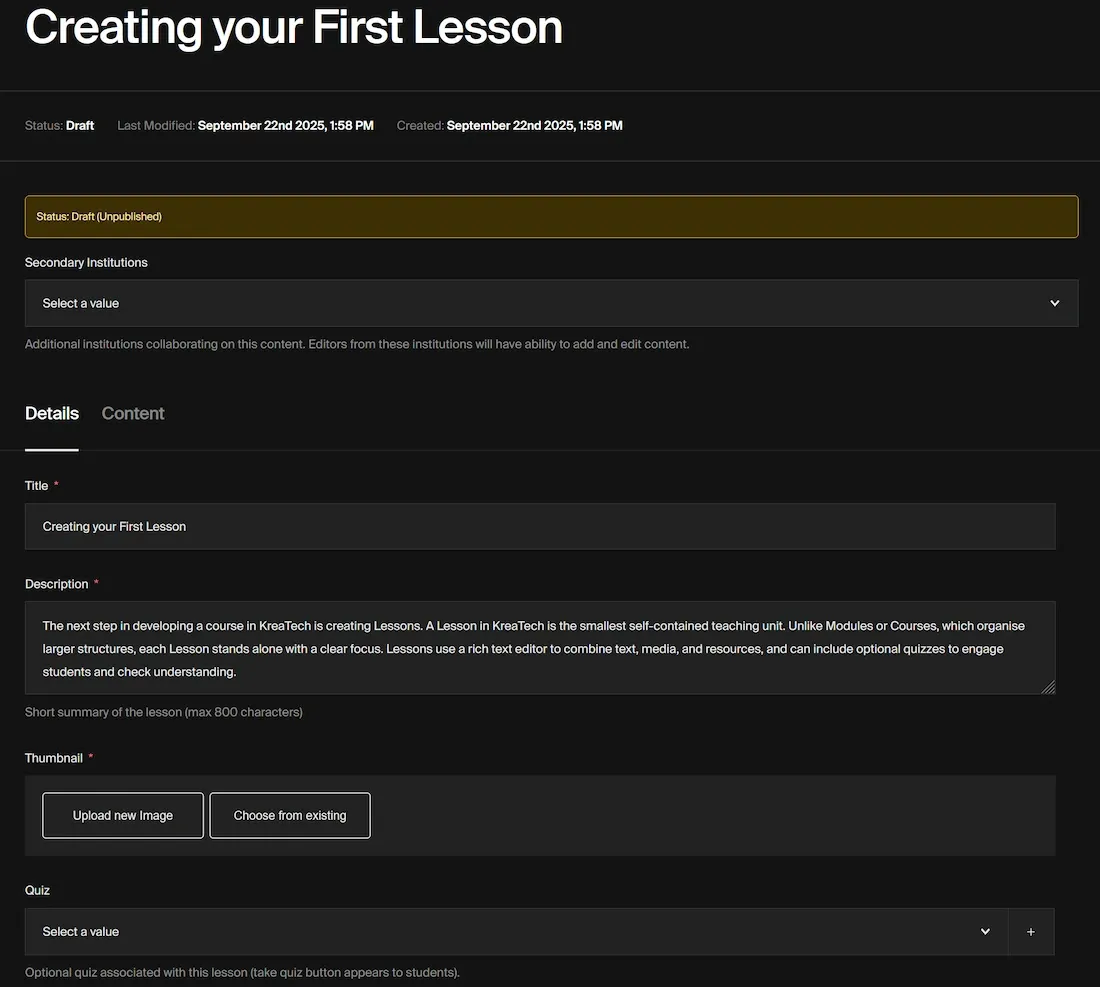
The KreaTech CMS interface for creating a new lesson. It shows the "Details" tab, showing fields for title, description, thumbnail, and optional quiz
The details tab begins with a title field. Beneath the title, you will find a description field. The lesson description is constrained to a maximum of 800 characters. The description will appear within the Hero section of the front-end, directly below the title. The character limit ensures that descriptions remain concise and accessible on any device.
Next, you must link the lesson to an Author and Thumbnail. Without these steps, the Lesson cannot be published, as attribution is mandatory.
Finally, you can also link a preexisting quiz. Quizzes allow students to self-assess their learning progress for each lesson. Quizzes support single-choice, multiple-choice, and slider-type questions.
Content Tab
In the content editor, you can add the actual body of the lesson. Text can be written inside a rich text editor. Here, you may enter paragraphs of text, create headings to structure the material, and embed images or videos. If your Lesson includes external resources, you can also attach them from the Media or File collections.
Once all required fields are filled and optional resources are added, the Lesson can be saved, previewed, or published. The lesson remains in draft until published. Draft mode means that the lesson continues to exist on the KreaTech CMS, but is not visible on the front end to students.
Placing the Learning Hierarchy
Before lessons can be viewed y students in a coherent course, they must be attached to a Module, and a module attached to a course. The next lessons will cover these steps.